8x8 Contact Center allows administrators to proactively invite website visitors to chat using a customizable chat invitation. The invitation can appear after a visitor spends a specific amount of time browsing your website. You can create new chat invitations from scratch or duplicate and modify the default one.
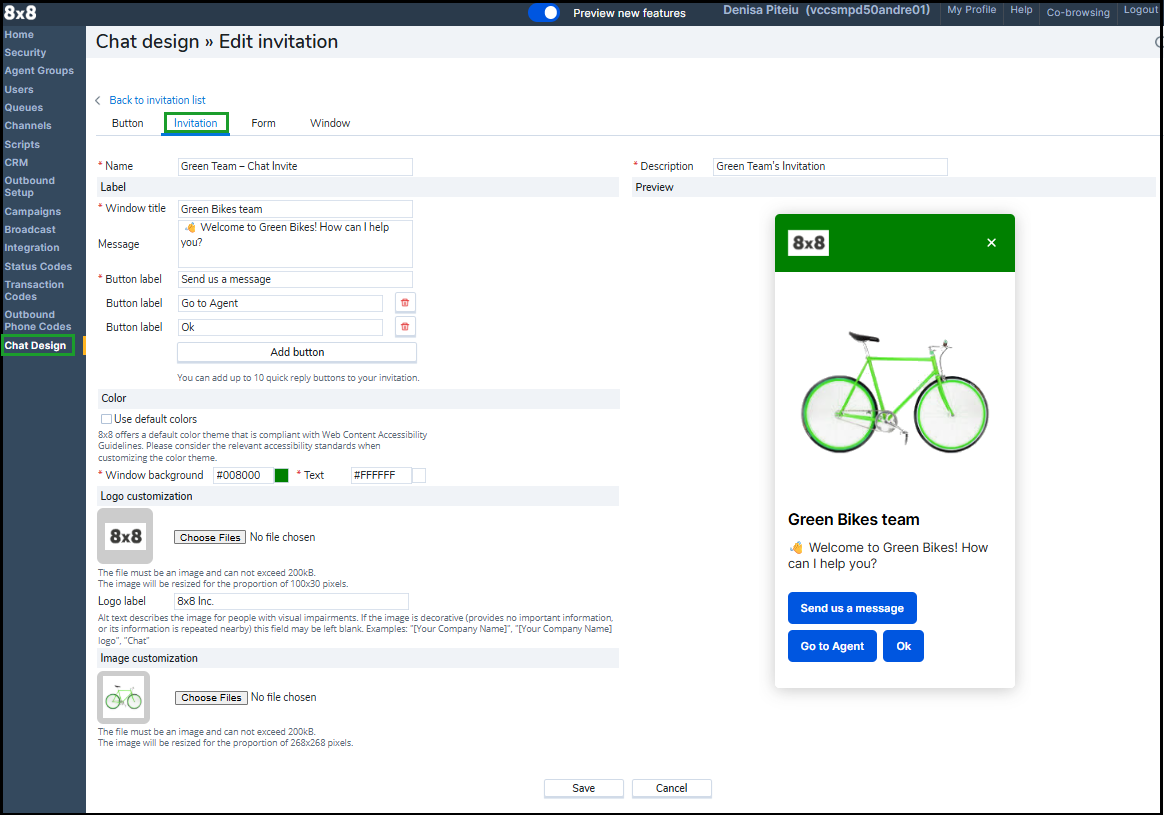
Note: The chat invitation experience has been significantly improved, such as, quick-reply buttons, custom logo and image support, and enhanced color and accessibility controls.
How to create a chat invitation
- From the 8x8 Configuration Manager, open Chat Design.
- Go to the Invitation tab.
- Click
 or Add new invitation.
 -
Customize the invitation content:
-
General info
- Name: Required name for internal reference.
- Description: Enter a short description.
-
Label
- Window title: Enter a title for the chat window. (Up to 30 characters). Appears at the top of the chat prompt.
- Message (Optional): Add a brief message (maximum 125 characters).
-
Button label - Set the button text (maximum 30 characters).
- (Optional) Click Add button to include additional buttons.
- Click Delete
 next to the button to remove it.
-
Color
- Select the Use default colors checkbox to apply 8x8’s WCAG-compliant theme.
- To customize, clear the checkbox and define your own header and button colors.
-
Logo customization
- Click Choose Files to upload a logo (up to 200 kB). The logo is resized to 100×30 pixels.
- Logo Label: Enter alt text describing the logo for screen readers, following WCAG accessibility standards.
-
Image customization (Optional)
-
Click Choose files to upload an image (up to 200 kB). Images are resized to 100×30 pixels. This helps for visual branding or promotional prompts.
-
-
- The Preview window updates in real time as you make changes.
- Click Save when you are satisfied with the design.
Note: You can edit an existing chat invitation anytime. Go to Chat Design > Invitation, then click Edit  in the invitation row you want to edit.
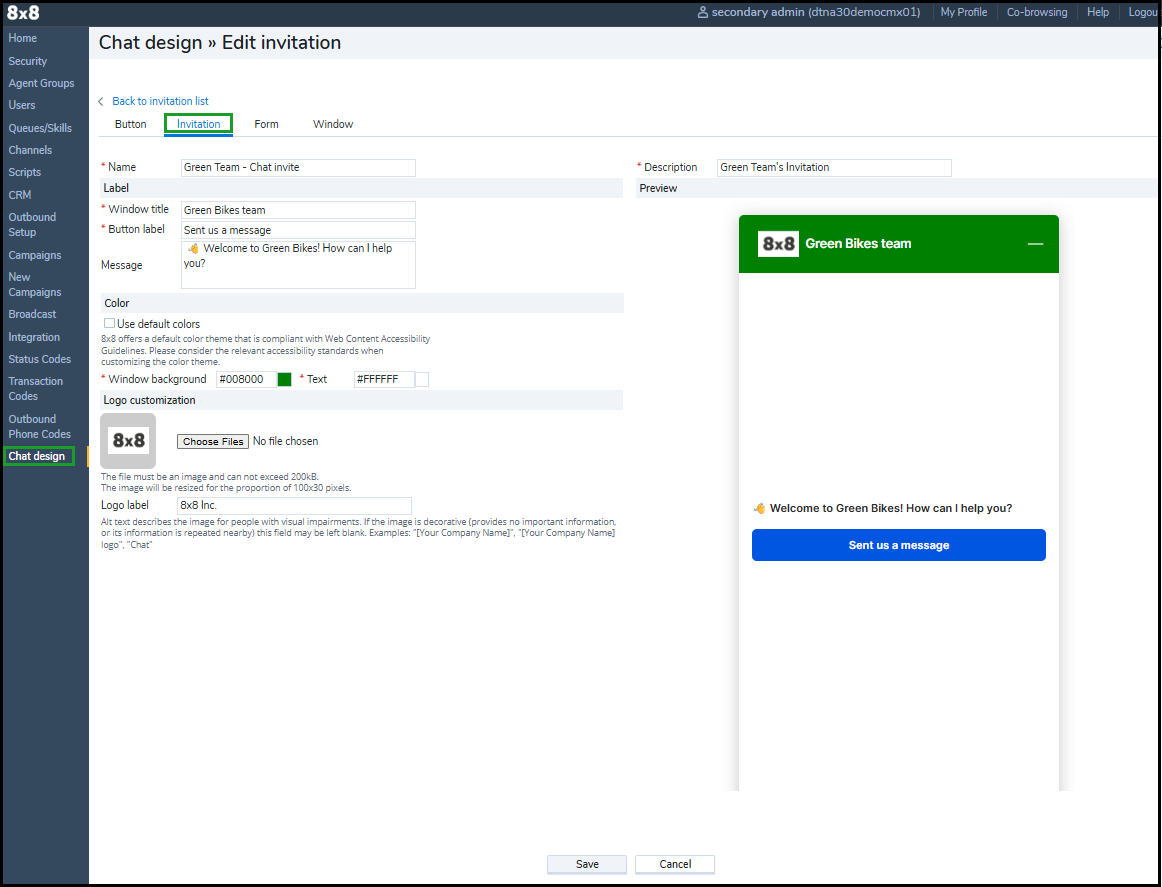
Edit a chat invitation
To modify an invitation:
- From the 8x8 Configuration Manager, open Chat Design.
- Go to the Invitation tab.
- Click Edit next to the invitation you want to modify.
- Click Save.
 See Also


